A shot ends before the voiceover finishes. A camera move cuts off just before the reveal. Your closing product shot needs a little more room for the call to action. These are useful moments to combine FilmCraft, the open-source video editor, with Video Extend, which generates a continuation from an existing clip.
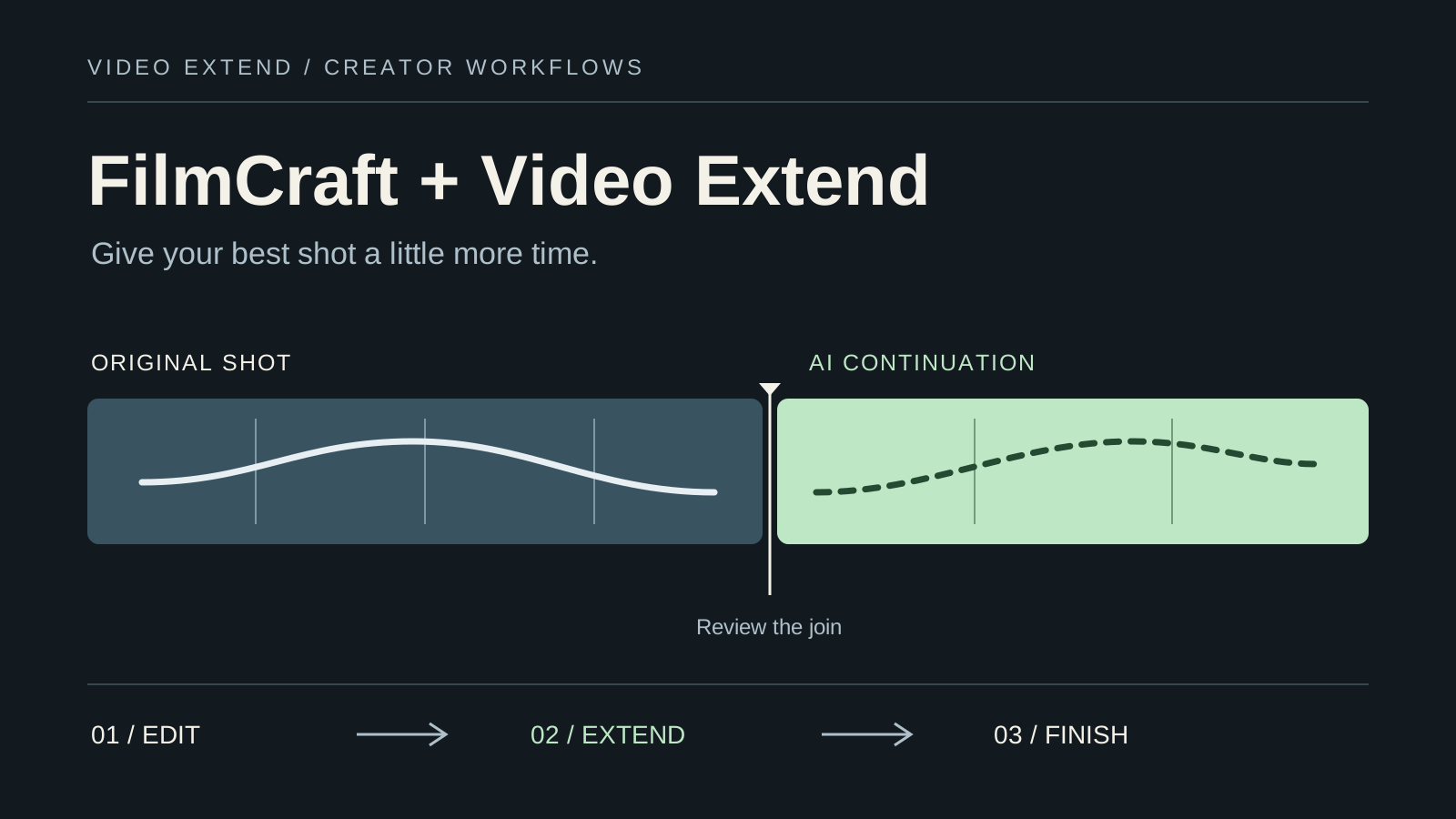
The workflow is straightforward: assemble your edit in FilmCraft, send a short source clip to Video Extend, then import the result to finish the sequence. FilmCraft handles the timeline; Video Extend supplies additional footage for the shot you want to keep.
What Is FilmCraft?
FilmCraft is an open-source nonlinear video editor from the ArtCraft team, written in Rust. Its official documentation describes a familiar Premiere-style workflow with source and program monitors, a multitrack timeline, trimming tools, color controls, audio mixing, titles, captions, and export. The project provides desktop builds for macOS, Windows, and Linux.
That combination makes it an interesting project for creators looking at open-source editing tools. It also explains why FilmCraft and AI video extension belong in the same production conversation: once you can assemble an edit, the next constraint is often the footage itself.
There is an important qualification. As of October 13, 2026, the FilmCraft README labels the project alpha and describes gaps in performance, media compatibility, and production readiness. Test a short import, edit, and export with your own footage before moving a full project across. The README also says native Premiere .prproj files cannot yet be opened directly.
FilmCraft documents CLI and MCP interfaces for agent-controlled editing. That capability is distinct from generating new video frames. This article describes a manual file workflow between two separate products; it does not require or imply a FilmCraft plugin or a direct Video Extend integration.
When Should You Extend a Shot?
Before using AI, check whether the source file already contains the missing moment. A timeline clip may end early simply because its out point was trimmed. If unused source frames remain, revealing those frames is the most faithful way to make the shot longer.
When the source really ends, choose the technique that matches the edit:
| What your sequence needs | A useful approach |
|---|---|
| More of an action that already exists in the original file | Extend the out point in FilmCraft |
| A deliberate slow-motion moment | Retime the source and review motion and audio |
| A still image behind an end title | Use a held frame |
| A different view of the same scene | Cut to another shot or B-roll |
| The current movement to continue beyond the source | Generate a continuation with Video Extend |
An AI video extender adds newly generated frames. It is useful when a person should keep walking, a landscape pan should continue, or an object should remain in gentle motion while the edit breathes. It cannot recover what a camera actually recorded after it stopped, and generated details need review.
A FilmCraft and Video Extend Workflow
1. Find the Exact Gap in Your Rough Cut
Build the rough sequence in FilmCraft first. Place the voiceover, music, and adjacent shots so you know why extra footage is needed. Mark the point where your source ends and the point where the next cut should happen.
For example, imagine a five-second product shot that needs to cover an eight-second voiceover passage. The editorial gap is three seconds. That is a planning example, not a promise that a model will return exactly three extra seconds: you may generate a longer continuation and keep only its usable opening.
2. Prepare One Clean Source Shot
Use a continuous shot with a clear ending. Avoid sending an entire montage: a cut immediately before the last frame makes the intended continuation harder to specify. A stable camera move and a recognizable subject give you a more useful starting point than a blurred transition.
If the original media already contains the exact shot you need, use that file. Otherwise, isolate the shot in FilmCraft and export it. The official documentation lists H.264 MP4 export, which is a practical starting format for this handoff. Check that the exported file plays correctly before uploading it.
Leave titles, subtitles, logos, and final sound design on separate tracks where possible. Generated text can distort, and you will have more control if you add those elements after extending the underlying picture.
3. Upload to Video Extend and Review the Settings
Open the Video Extend generator, select the video-to-video mode, and upload the source shot. The current upload control accepts files up to 50 MB; individual models can impose additional source-duration and format requirements.
Choose an available extension model, then review its duration, resolution, aspect-ratio, and audio options. These controls vary by model. Check the estimated credit cost before submitting, and sign in when you are ready to generate. The pricing page explains the available credit plans.
Keep the framing consistent with your edit. A portrait source intended for a vertical sequence should not accidentally become a landscape continuation. Also distinguish the model's generated duration from the final runtime of your assembled shot.
4. Describe What Happens Immediately Next
Write the prompt as a continuation of the last visible action. Name the subject, the movement, the camera behavior, and the visual details that should remain stable.
For the product-shot example:
Continue the same slow camera push toward the ceramic cup. Keep the cup shape, handle position, wooden tabletop, warm window light, and shallow depth of field consistent. Steam continues to rise gently. Maintain the current framing and camera speed in one uninterrupted shot, with no new objects or text.
This gives the model a specific next action and a set of visual constraints. Asking for several new events, a new location, and a different lens in the same continuation makes the result much harder to match to the original.
5. Review the Join and the Downloaded File
Watch the result at normal speed, then inspect the boundary between the source and the generated section. Look at faces, hands, object edges, motion direction, lighting, and camera speed. A plausible still frame can hide a visible jump during playback.
Check what the downloaded file contains. If it already includes the original shot, replace the timeline clip with that longer file or trim to the continuation before appending it. If it contains only the new segment, place it after the original. This prevents accidentally playing the source twice.
Keep a usable portion instead of forcing the whole generation into the edit. If a cup stays convincing for the first few moments and then changes shape, shorten the extension or regenerate with a simpler action.
6. Finish the Sequence in FilmCraft
Import the reviewed result into FilmCraft and align it with the source or replace the original clip as appropriate. Trim it to the planned cut point, check the sequence frame rate and scaling, and match the visible color and exposure.
Restore titles, captions, and your intended audio. AI-generated audio, when offered by the selected model, should be checked separately; it is not a guaranteed continuation of your original voiceover, music, or room tone. Keeping those tracks in the editor makes timing and transitions easier to control.
Finally, export a short section around the join and watch that exported file. This checks the actual delivery result as well as the timeline preview.
Three Continuation Prompts to Adapt
Use these as starting points and replace the details with what is visible in your own shot. They are illustrative prompts, not measured output examples.
Travel or Landscape B-Roll
Continue the slow pan to the right across the same mountain valley. Preserve the distant ridge, morning mist, soft sunlight, and natural colors. Keep the horizon level and maintain the existing camera speed without introducing buildings, people, or a scene change.
This suits a shot that needs to carry a little more narration. Review the terrain carefully: a plausible continuation can still invent geographic details.
A Character Walking Through a Scene
The same person continues walking away from the camera along the path. Preserve their jacket, hairstyle, body proportions, and walking pace. Maintain the existing follow-camera distance, lens perspective, and late-afternoon light. Keep the movement continuous without a cut.
Inspect clothing, gait, and body proportions across the join. Identity consistency is a review task, not something a prompt can guarantee.
A Product Shot Before an End Card
Continue the gentle clockwise movement around the same unbranded bottle. Preserve its silhouette, cap, glass reflections, background, and soft studio lighting. Keep the bottle centered and leave the existing empty space on the right clear. Maintain one continuous camera move.
Add the end-card copy in FilmCraft afterward. For packaging with exact labels or legally required text, inspect every usable frame and keep critical graphics under editorial control.
Fixing Common Problems
| What you notice | What to try |
|---|---|
| The subject changes at the join | Choose a clearer source ending and reduce the requested action |
| The camera suddenly speeds up | State the current direction and speed; remove competing camera instructions |
| The result looks softer or crops the subject | Compare model resolution and aspect ratio with your sequence settings |
| The original shot plays twice | Check whether the download includes the source before appending it |
| The picture works but sound jumps | Rebuild the audio transition on separate timeline tracks |
| Later extensions drift farther from the source | Use fewer generation steps and introduce an intentional cut |
For a closer explanation of continuation and frame chaining, read how to extend the duration of AI-generated videos. The practical goal is the same: keep enough continuity for the viewer to follow the shot, then make the cut where the story needs it.
Frequently Asked Questions
Is FilmCraft Free?
FilmCraft's official site describes it as free and open source. Its repository offers MIT or Apache-2.0 licensing. Video Extend is a separate service whose generation costs depend on the model and settings shown in the generator.
Can FilmCraft Extend a Clip Without AI?
It can use editing and retiming tools to change how existing footage occupies the timeline. If unused source frames exist, moving the out point reveals them. Generating new action after the source ends is the separate step covered by this workflow.
Is There a Video Extend Plugin for FilmCraft?
This guide uses exported video files and manual import. No plugin, linked account, or automatic timeline synchronization is required for the workflow described here.
Will the Extension Be Seamless?
Results depend on the source and the selected model. Faces, fine text, fast motion, and complicated camera moves can expose differences. Review the join and use only the portion that fits your edit; an ordinary cut is sometimes the stronger choice.
Where Should I Start?
Pick one short shot with simple motion and a clear reason to last longer. Open Video Extend, generate a continuation, and bring the usable section into your FilmCraft edit. Solving one specific timing gap is a practical first experiment.
Sources and Editorial Note
- FilmCraft official product page: project overview, desktop downloads, and editing features.
- FilmCraft official repository: editing, codecs, export, automation, and licensing documentation.
- FilmCraft development status: alpha status and current limitations.
Sources were reviewed on October 13, 2026. FilmCraft feature descriptions are based on its documentation; this is a proposed editing workflow, not a hands-on FilmCraft benchmark. Video Extend settings were checked against this site's current implementation. The products are independent, and this article does not announce a partnership or integration.