Grok Imagine, xAI's video model, can extend a video: it takes your clip and generates new footage that continues it from the last frame. This guide covers how to extend a video in the Grok app, the limits of Grok's extension model, what to do when Grok's Extend is not working, and how to extend any clip with Grok Imagine in Video Extend, including videos you didn't make in Grok.
All details are as of November 2026. Grok's app changes often, so if a menu looks different, check what the app shows for your video.
Here are three clips we extended with Grok Imagine in Video Extend: a mountain bike ride, a dog on a climbing wall, and a western street. Switch between the source clip and the full result, or tap a frame to jump to it:
Prompt used
Continue the same shot. The rider keeps riding down the forest trail at the same speed, leaning through the next turn between the pine trees, with the handlebar-mounted camera bouncing naturally over roots and dirt. Same sunny forest light, same bike and gloves, same first-person view, no cuts.
How to extend a video in the Grok app
- Generate a clip in Grok Imagine and open the finished video.
- Tap Extend. Depending on your app version, it is on the video or under the three-dot menu.
- Describe what happens next. Start from the last frame: who moves, where, and what the camera does.
- Submit and review. Repeat from the new result to keep going.
Two things trip people up:
- Set the look before you extend. Extend mode doesn't let you change resolution or aspect ratio, so choose those when you create the first clip.
- There is a total length cap in the app. Guides report a total of around 30 seconds of extended video in the app. xAI hasn't published an official figure, so treat it as a guide.
Grok Imagine extension limits
These limits come from xAI's developer documentation for video extension, and Video Extend follows the same limits:
| Setting | Limit |
|---|---|
| Source video length | 2 to 15 seconds |
| Source format | MP4 (H.264, H.265, or AV1) |
| New footage per extension | 2 to 10 seconds (default 6) |
| Output | Your source plus the new footage, as one video |
| Resolution | Follows your source, capped at 720p |
| Aspect ratio | Follows your source |
For example, a 10-second clip extended by 5 seconds returns a 15-second video. A single Grok Imagine generation (not an extension) can be up to 15 seconds.
Grok extend video not working? Common causes and fixes
| What you see | Likely cause | What to try |
|---|---|---|
| No Extend button | Old app version, or your plan doesn't include video extension | Update the app; check whether your X Premium or SuperGrok plan includes video |
| Extend button disappeared after a few extensions | The video reached the app's total length cap | Download the video and extend it outside the app (see below) |
| Can't extend a video you uploaded | The app's Extend works on Grok-generated videos | Use the extension model through another tool, which accepts any MP4 |
| Extension fails or is blocked | Content moderation on the prompt or frame | Rewrite the prompt with neutral wording; end the source on a different frame |
| Resolution or aspect ratio is wrong | These are locked in extend mode | Regenerate the first clip with the right settings, then extend |
| The extension jumps or changes the scene | The prompt asks for too much, or the last frame is blurry | One action per extension; trim the clip so it ends on a sharp frame |
If the button is missing for no clear reason, it may be a temporary app issue: xAI hasn't documented why Extend sometimes disappears. Try the web version or check again later.
How to download a Grok video
To extend a Grok video somewhere else, or keep going past the app's cap, you need the file:
- Open the video in Grok (app or web).
- Tap the download icon, or use the three-dot menu and choose Download or Save.
- You get an MP4, which you can trim and upload to any editor or extension tool.
If you only have a link to a Grok video that someone shared, open it while signed in and download it from there. If you can't, ask the creator for the file: Video Extend needs the video file itself, not a link.
Extend any clip with Grok Imagine in Video Extend
Video Extend runs the same Grok Imagine extension model, but you upload the file yourself, so it works with clips from Grok, your phone, Veo, Kling, or anywhere else.
- Prepare the clip. It must be 2 to 15 seconds long. If it's longer, trim it to the last 15 seconds or less. Cut off fades, cuts, or blurry final frames.
- Upload it to the AI video generator and choose Grok Imagine Extend. MP4, MOV, and WebM files up to 50 MB are accepted.
- Set the extension length (2 to 10 seconds). Start with 6 seconds; shorter extensions drift less.
- Write the prompt. Describe what happens next, starting from the last frame.
- Check the quote and generate. The credit cost is shown before you submit, and failed jobs are refunded.
- Review the seam, then extend again from the result if you need more.
The model's settings and our test result are on the Grok Imagine model page.
Grok video prompts for extensions
Extension prompts work best when they describe one action that follows directly from the last frame, plus what must stay the same.
Continue the same shot. The cat on the windowsill turns its head toward the street, then stretches and lies down in the sun. The camera stays still. Same afternoon light, same room, no cuts.
Continue the same shot. The rider keeps pedaling up the trail, passes the tree on the left, and slows at the top of the hill. The camera follows at the same distance. Same evening light, no cuts.
Continue the same shot. The woman lifts the coffee cup, takes a sip, and smiles at someone off camera. The camera slowly pushes in. Same café, same lighting, no cuts.
Patterns that help:
- Start with "Continue the same shot." It tells the model not to cut to a new scene.
- State the framing. Grok's framing can drift, especially with camera moves, so add "the camera stays at the same distance" when framing matters.
- End with what must not change: lighting, location, outfit, "no cuts."
Build your own with the video extension prompt generator, or see more examples by shot type in our video extension prompt guide.
We tested Grok extension on 3 kinds of clips
In November 2026 we ran Grok Imagine Extend on three different 5-second stock clips: a vertical city walk, a close-up of a coffee cup, and a vertical mountain lake. Every source was 720p with no audio. We ran 5 extensions in total and checked the frames at the seam and at the end of each one.
| Run | Source | Added | Finished in | Result |
|---|---|---|---|---|
| City, 6 s | Vertical, camera following a woman | 6 s | About 1.7 min | Smooth seam; bag, coat and buildings held |
| City, 10 s | Same clip | 10 s | About 3 min | Smooth seam, but the shopping bag switched hands |
| City, 6 s + framing line | Same clip | 6 s | About 1.9 min | Most stable framing of the three |
| Coffee cup, 6 s | Horizontal close-up | 6 s | About 2 min | Full lift, sip and set-down; ring and watch kept |
| Mountain lake, 6 s | Vertical landscape | 6 s | About 2.2 min | Clouds and shadows moved naturally; camera held |
All 5 runs succeeded. Each output kept the source's resolution and aspect ratio (720×1280 or 1280×720) and returned the full video: the 5-second source plus the new footage.
Test 1: 6 seconds vs. 10 seconds
The city clip follows a woman in a white coat carrying a striped shopping bag in her right hand. Both extensions continued the walk without a visible jump at the seam, and the buildings, street lamps and light matched the source.
The 10-second run made a continuity mistake the 6-second run didn't: within 2 seconds of the seam, the bag moved to her other hand, with no handover. A statue on the left also changed shape as the camera moved.
Prompt used
Continue the same shot. The woman in the white coat keeps walking away from the camera along the wide plaza, swinging her striped bag, as the camera follows behind her. Same overcast daylight, same city buildings, no cuts.
Takeaway: longer passes give the model more room to "forget" details. If small props or clothing matter, extend 6 seconds at a time and check each pass.
Test 2: does a framing line help?
We repeated the 6-second city run with one extra sentence: "The camera follows at the same distance and height, keeping her the same size in the frame."
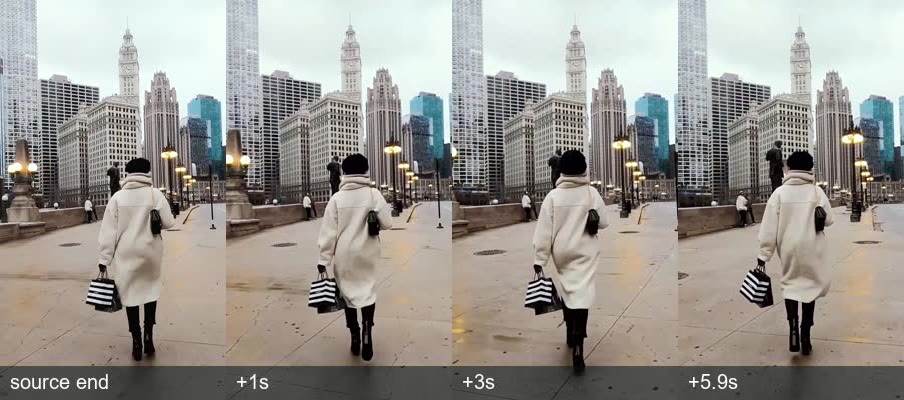
In the plain run, the camera crept slightly closer and the woman drifted right of center by the end. With the framing line, her size and position stayed closer to the source. The difference was small on this simple follow shot. In our earlier test with a camera arc, the subject pulled far away. Grok's framing drifts most when you ask for a camera move, so the framing line matters most then.
Test 3: product close-up
The coffee cup clip is a horizontal close-up of hands, a white cup, a silver ring and a black smartwatch. We asked for her to lift the cup, sip and set it back down.
Prompt used
Continue the same shot. The woman lifts the white coffee cup from the saucer, takes a slow sip, and sets it back down on the saucer. The camera stays still. Same table, same hands, same silver ring and black watch, same soft window light, no cuts.
Grok completed the whole action in 6 seconds, and the cup's shape, the ring and the watch stayed consistent. It also revealed part of her face as she drank, which wasn't in the source frame. Watch for this with product clips: if a face or a logo shouldn't appear, say so in the prompt ("her face stays out of frame").
Test 4: landscape
For the vertical mountain lake, we asked for drifting clouds, moving shadows and rippling water with a still camera.
Prompt used
Continue the same shot. Clouds drift slowly across the sky and their shadows move over the mountains. The lake surface ripples gently and the grass sways in a light breeze. The camera stays still. Same mountains, same small red-roofed hut, no cuts.
This was the easiest clip for Grok: the mountains, the small red-roofed hut and the lake's shape stayed put, and only the clouds, shadows and light changed. Calm wide shots are where Grok extension is most reliable.
Surprise: Grok adds sound to the new part
None of our sources had audio, but every output had an audio track. The source part stayed silent. The new part had generated sound: faint in the city and cup clips, clearly audible ambient sound in the lake clip. If your source has its own audio, expect a change in sound at the seam. Mute or replace the extension's audio in your editor, or rebuild the soundtrack over the whole clip.
What the tests changed in our advice
- Use 6-second passes when details matter. The only continuity error in our tests came from the 10-second run.
- Plan for about 2 minutes per 6-second pass, and about 3 minutes for 10 seconds.
- Add a framing line, especially when the prompt includes a camera move.
- Name what must stay out of frame in product shots, not only what must stay the same.
- Check the audio at the seam.
- Moderation checks the result, not just the prompt. An extension can be rejected after it's generated. On Video Extend, credits for failed jobs are refunded.
We also ran Grok in our earlier side-by-side comparison of every model on one western street clip with a camera arc (the third example at the top of this guide). There, Grok connected the motion well but pulled the subject farther from the camera.
Test clips: city walk, coffee cup and mountain lake from Pexels, trimmed to 5 seconds at 720p.
Grok extension pros and cons
| Pros | Cons |
|---|---|
| Smooth motion across the seam | Output capped at 720p |
| Keeps the source aspect ratio automatically | Source must be 15 seconds or less |
| Reliable on calm wide shots and landscapes | Longer passes can lose small details (a bag switched hands in our 10 s test) |
| Short, cheap passes are easy to chain | Framing can drift when you ask for camera moves |
| Adds generated sound to the new footage | Forward only: can't add footage before the clip |
| The model accepts any MP4 through the API or Video Extend | In the app, total length is capped and Extend is tied to your plan |
Grok app or extending the file?
| In the Grok app | Upload the file to an extension tool | |
|---|---|---|
| Works on | Videos generated in Grok | Any MP4, MOV, or WebM clip |
| Total length | Capped (reported around 30 seconds) | No fixed total; trim to 15 seconds before each Grok pass |
| Other models | Grok only | Switch models per pass (for example, Grok for motion, H3 Max Turbo for a 2K final) |
| Cost shown before you start | Depends on your plan | Credit cost shown before each job |
| Best for | Quick continuations of a Grok clip | Clips from other sources, longer videos, higher resolution |
When to use another model
| You need | Try |
|---|---|
| A source clip longer than 15 seconds | H3 Max or H3 Max Turbo (sources up to 60 seconds), Seedance 2.5 (up to 30 seconds) |
| More than 720p | H3 Max Turbo (up to 2K), Flux 3 or Pixverse V6 (720p or 1080p) |
| More than 10 seconds in one pass | Seedance 2.5 (up to 30 seconds), LTX 2.3 Pro (up to 20 seconds), H3 Max (up to 15 seconds) |
| Footage before the clip starts | LTX 2.3 Pro or LTX 2.3 Quality, which can extend backwards |
Compare every model's limits in one table on the models page.
FAQ
Can Grok extend a video I didn't make in Grok?
In the Grok app, Extend works on videos generated in Grok. The underlying extension model accepts any MP4 of 2 to 15 seconds, so you can upload clips from any source in Video Extend and run Grok Imagine Extend on them.
How long can a Grok video be?
A single Grok Imagine generation is up to 15 seconds. Each extension adds 2 to 10 seconds. In the app, guides report a total cap of around 30 seconds; outside the app, you can keep extending as long as each source stays within 15 seconds (trim before each pass).
Why is my Grok extend video not working?
The most common causes are an outdated app, a plan without video extension, a video that has reached the app's length cap, or a moderation block on the prompt. See the troubleshooting table above for fixes.
Does Grok's extension keep the aspect ratio?
Yes. The output follows your source's aspect ratio and resolution, up to 720p.
Is there another way to make a video longer?
Yes. Slowing down, looping, and freeze frames also add time. Compare all the options in 5 ways to make a video longer, or see how AI continuation works on the AI video extender page.