MiniMax H3 Max Turbo can extend an existing video with prompt-guided footage. In Video Extend, select H3 Max Turbo Extend, upload a source clip, and describe what should happen next. You can request additional footage at 1080P or 2K and choose either a full extended video or a continuation clip for your editor.
That makes it useful for a familiar editing problem: a shot looks right but ends before the narration, camera movement, or closing message is finished. Instead of rebuilding the whole scene, you can try continuing its final action.
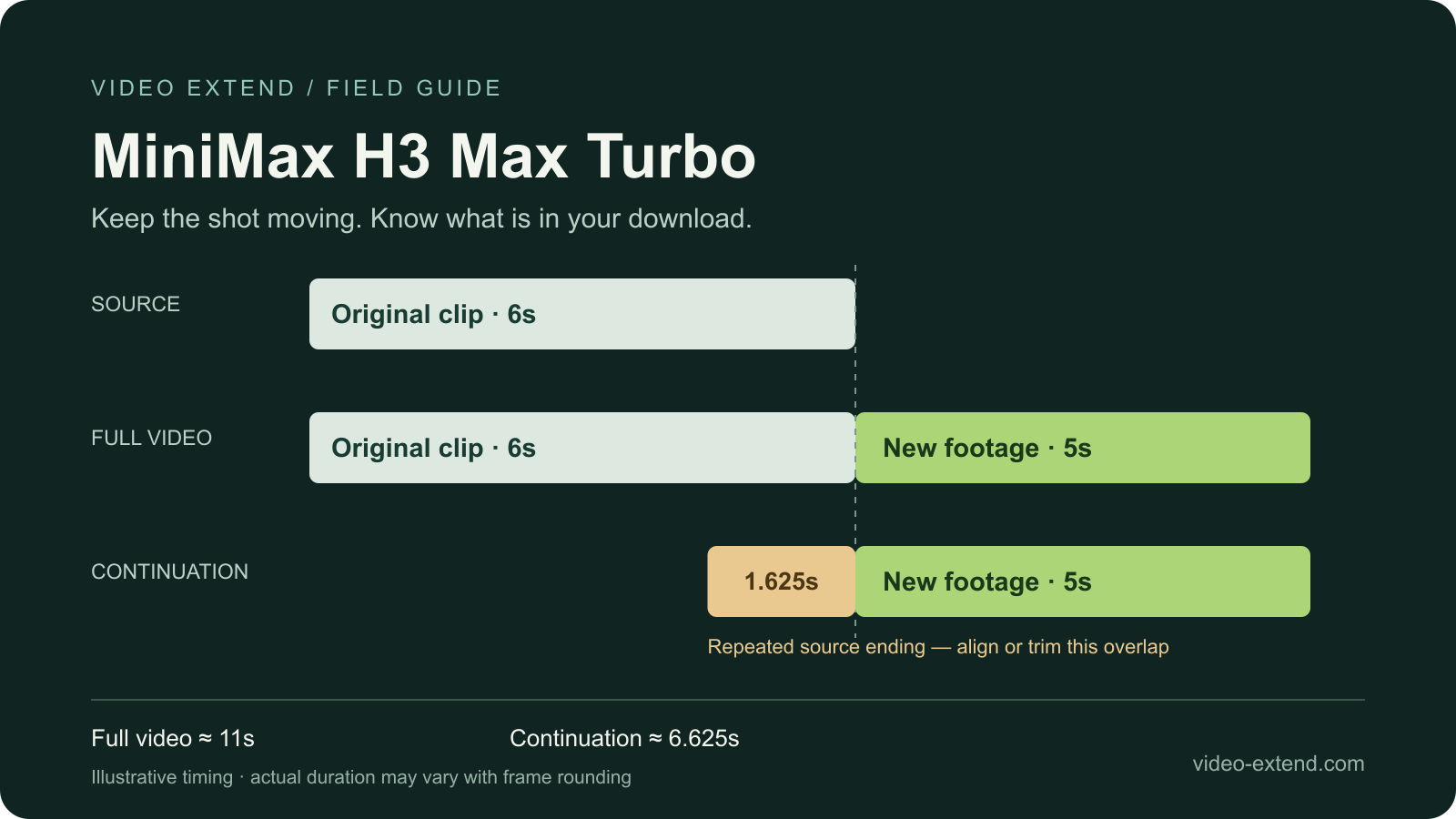
This guide explains the model, the settings available in Video Extend, and one detail that matters when editing the result: the continuation-only output begins with a 1.625-second repeat of the source ending.
Open H3 Max Turbo in Video Extend.
What Is MiniMax H3 Max Turbo?
MiniMax introduced H3 on July 31, 2026, as a multimodal generation model that understands text, images, video, and audio. Its announcement describes video generation with native stereo sound and output up to 2K.
fal describes H3 Max and H3 Max Turbo as variants post-trained from MiniMax H3 and optimized with its inference system. The name also appears as MiniMax H3-Max-Turbo or minimax/h3-max-turbo in model listings. For this workflow, the relevant capability is Extend Video: it takes an existing video and generates what happens afterward.
Video Extend has integrated fal's H3 Max Turbo Extend Video endpoint. You can use it through the site's generator without writing an API request.
Check the specific task when comparing specifications. Text-to-video, image-to-video, and extend-video endpoints can expose different settings. For example, fal's current extension documentation lists 480P, 768P, 1080P, and 2K, while Video Extend currently offers 1080P and 2K for this model. Speed figures from a text-to-video benchmark do not establish how long a video-extension request will take.
When Is Video Extension Useful?
Use extension when you want the current shot to keep moving beyond the available footage. Good starting candidates include a slow landscape pan, a person continuing along a path, or a product shot that needs more time before an end card.
First check whether the original recording has unused frames after your timeline's out point. Revealing existing footage preserves the actual scene. If you only need a static background, a held frame may also solve the timing problem.
An AI video extender generates new action. It does not recover missing footage, and a convincing continuation can still alter faces, lettering, object shapes, or motion. Pick a shot with a clear subject and a simple next action, then judge the result in playback.
H3 Max Turbo Settings in Video Extend
The following settings reflect the site's implementation checked on October 14, 2026. The source requirements and output behavior were also checked against fal's extension API documentation.
| Setting | Current behavior in Video Extend |
|---|---|
| Source length | 1.625–60 seconds |
| Source file size | Up to 50 MB |
| Source aspect ratio | Width divided by height must be between 0.4 and 2.5 |
| New footage duration | 0.71–15 seconds; default 5 seconds |
| Output resolution | 1080P or 2K; default 1080P |
| Output aspect ratio | Auto, 21:9, 16:9, 4:3, 1:1, 3:4, or 9:16 |
| Output mode | Full extended video or continuation only |
| Prompt expansion | Enabled by default |
| Optional reference audio | Up to 3 clips; 2–15 seconds each, 15 seconds combined |
New footage duration is the amount to add, not the final video length. A six-second source with five requested new seconds should produce roughly eleven seconds in full-output mode. Frame rounding can make the returned duration slightly different.
Keep the aspect ratio on Auto when you want to follow the source framing. According to fal's documentation, selecting another ratio crops the video to fit; it does not promise to generate a wider view around the original picture.
How to Extend a Video with H3 Max Turbo
1. Prepare a Source with a Clear Ending
Choose one continuous shot. Watch its final moments and identify the movement you want to preserve. A clean ending gives you a much clearer continuation prompt than a montage ending in a cut or dissolve.
Trim away an accidental black frame or transition before uploading. Keep captions, exact product labels, and final graphics on separate editing tracks where possible so you can control them after generation.
2. Open the Model and Upload Your Clip
Use the H3 Max Turbo generator link to preselect the model. If you arrive through the main generator, choose the video-to-video mode and select H3 Max Turbo Extend.
Upload the source and allow the file checks to finish. If the clip exceeds the duration, size, or aspect-ratio limits, prepare a compatible version before generating. A supported source length is an input limit, not a recommendation to upload an entire edited sequence.
3. Choose the Additional Duration and Output
Start with the default five new seconds if that fits the edit. Use 1080P for a first attempt, keep Auto framing, and select Full extended video if you want the source and continuation delivered together.
Choose Continuation only when you need to place the new material into an existing timeline. It includes an overlap that needs aligning, as explained below. Set the resolution for your delivery needs; selecting 2K does not guarantee that every detail in a low-resolution source will become sharper.
4. Describe the Next Action
Write what happens immediately after the final visible moment. Include the subject's movement, camera direction, details to preserve, and the intended sound. Avoid asking for several scene changes in a shot meant to remain continuous.
Prompt expansion is enabled by default. fal says it uses the source video to enhance the prompt for consistency and may add processing time. You can turn it off when you want to compare results using your own wording.
5. Review the Cost, Generate, and Inspect the Join
Sign in and check the estimated credit charge before submitting. After generation, watch the transition at normal speed and inspect nearby frames. Look for a changed silhouette, a camera-speed jump, a repeated action, or an audible break.
Keep the portion that works in your edit. A shorter usable continuation is more valuable than extra seconds that visibly change the scene. Review the export options for your account before downloading the final file.
Full Video vs. Continuation Only: Handle the Overlap
The two output modes serve different editing needs:
| Output | What the returned file contains | How to use it |
|---|---|---|
Full extended video (extended) |
The source and newly generated footage together | Use the longer file in place of the original clip |
Continuation only (continuation) |
The source's last 1.625 seconds, then the new footage | Align the repeated opening with the source ending, or trim it before appending |
For a six-second source plus five new seconds, the continuation-only file is approximately 6.625 seconds long. Its first 1.625 seconds overlap with the source; they are not additional action.
If you append that entire file after the original, the ending plays twice. Instead, align its beginning at about 4.375 seconds into the six-second source, or remove the repeated opening and append the remaining new footage. Use the actual frames and audio to fine-tune the join because the output can be rounded to frame boundaries.
The diagram above illustrates this timing example. It is a workflow explanation, not a generated-video sample.
How Many Credits Does It Cost?
Video Extend calculates this model's charge from the requested new duration and selected resolution. Source duration is not billed. The current rates are 1.2 credits per new second at 1080P and 2.4 credits per new second at 2K, rounded up to a whole credit with a minimum charge of 7 credits.
| New footage requested | 1080P | 2K |
|---|---|---|
| 3 seconds | 7 credits | 8 credits |
| 5 seconds | 7 credits | 12 credits |
| 10 seconds | 12 credits | 24 credits |
| 15 seconds | 18 credits | 36 credits |
For example, five new seconds at 1080P calculate to six credits before the seven-credit minimum applies. Ten new seconds at 2K calculate to twenty-four credits.
These are Video Extend credits, not fal's direct API dollar prices. Check the generator's current estimate and the available credit plans before submitting; provider pricing and site rates can change.
Three Continuation Prompts to Adapt
These are suggested prompts, not tested output examples. Replace the objects, movement, and lighting with details visible in your own source.
Product Shot: Hold Attention Before the End Card
Continue the same slow push toward the ceramic cup on the wooden table. Preserve the cup shape, handle position, warm window light, and shallow depth of field. Steam keeps rising gently. Maintain the camera speed in one uninterrupted shot. Sound: quiet room tone, with no speech or music.
Keep your end-card text in the editor. This prompt aims to extend the moving background while leaving the graphic timing under your control.
Travel B-Roll: Give the Narration More Room
Continue panning slowly to the right across the same mountain valley. Keep the horizon level, the distant ridge consistent, and the morning mist moving gently. Preserve the existing light and camera speed. Sound: soft wind and distant birds, without dialogue or music.
Check the geography and skyline across the join. Generated scenery can look plausible while introducing features that were not in the source.
Character Movement: Continue One Simple Action
The same person continues walking away along the path at the same pace. Preserve their jacket, hairstyle, body proportions, and distance from the camera. Maintain the steady follow shot and late-afternoon lighting. Sound: footsteps continuing in rhythm with the walk, with soft outdoor ambience.
Inspect the gait, clothing, and body proportions. Avoid adding a turn, a new prop, and a camera orbit all at once when continuity is the priority.
Using Reference Audio
You can optionally upload audio or provide up to three accessible audio URLs. Each reference must be 2–15 seconds long, and the combined duration must not exceed 15 seconds. For example, a six-second voice reference and an eight-second ambience reference fit within the combined limit.
Assign each reference a role in the prompt, such as “Audio 1 for the voice” and “Audio 2 for background ambience.” fal documents that these clips guide newly generated audio instead of using the source soundtrack as the audio reference. The full extended video keeps the original source soundtrack, and the source ending still conditions the transition.
Reference audio guides generation; it does not guarantee a sample-perfect continuation of dialogue or music. If timing must be exact, finish the voiceover, music, and sound transitions on separate tracks in your editor.
Frequently Asked Questions
Is H3 Max Turbo Already Available in Video Extend?
Yes. Choose H3 Max Turbo Extend in the video-to-video generator, or use the model link in this guide. This article covers the extension capability integrated into Video Extend; other H3 tasks have their own endpoints and settings.
Can I Extend a Clip That Was Made with Another Model?
The documented input is a video file, with no stated requirement that H3 created it. A clip from another generator or a camera is a candidate if it meets the source requirements. Compatibility does not guarantee that its style or motion will continue convincingly.
Can I Add More Than 15 Seconds?
A single request in Video Extend accepts up to 15 seconds of new footage. You can try another extension if the next source still meets the input limits, including the 60-second maximum. Repeated generations can accumulate visual and audio drift, so review each join.
Does Turbo Mean the Result Arrives Instantly?
No fixed completion time is promised here. Queueing, source processing, prompt expansion, resolution, generation, and encoding affect the wait. fal's published text-to-video speed measurements should not be treated as timings for this extension workflow.
Where Should I Start?
Choose one short shot, request five additional seconds at 1080P, leave the aspect ratio on Auto, and inspect the full extended output. Try H3 Max Turbo with your clip.
For more editing context, read how to extend AI video duration or the FilmCraft and Video Extend workflow.
Sources and Editorial Note
- MiniMax H3 announcement: model background, launch date, and multimodal capabilities.
- fal's H3 Max overview: relationship between MiniMax H3, H3 Max, and H3 Max Turbo.
- H3 Max Turbo Extend Video model page: extension capability and provider billing basis.
- H3 Max Turbo extension API documentation: source requirements, output overlap, framing, prompt expansion, and audio behavior.
Sources and Video Extend settings were checked on October 14, 2026. Credit examples use this site's current calculation. This is a documentation-based usage guide, not a hands-on quality or speed benchmark.